The story board
Episodes across, acts down, beats as cards.
Break a season the way a room does: every episode is a column, every act a row, every beat a card coloured by its A/B/C storyline. Drag cards, or move them with buttons if you'd rather not drag.
What it does
- Episodes as columns, acts as rows, beats as cards
- Cards are coloured by storyline, and the board can be filtered to one storyline
- Mark a beat as the act-out turn
- Move cards by dragging, or with ◀ ▶ ▲ ▼ buttons (keyboard- and phone-friendly)
How to use it
- Story board → add a beat under an act
- Pick its storyline to colour it
- Drag it, or use the arrow buttons, to restructure
Step by step
Screenshots of the app, on the sample series. Click one to see it full size.
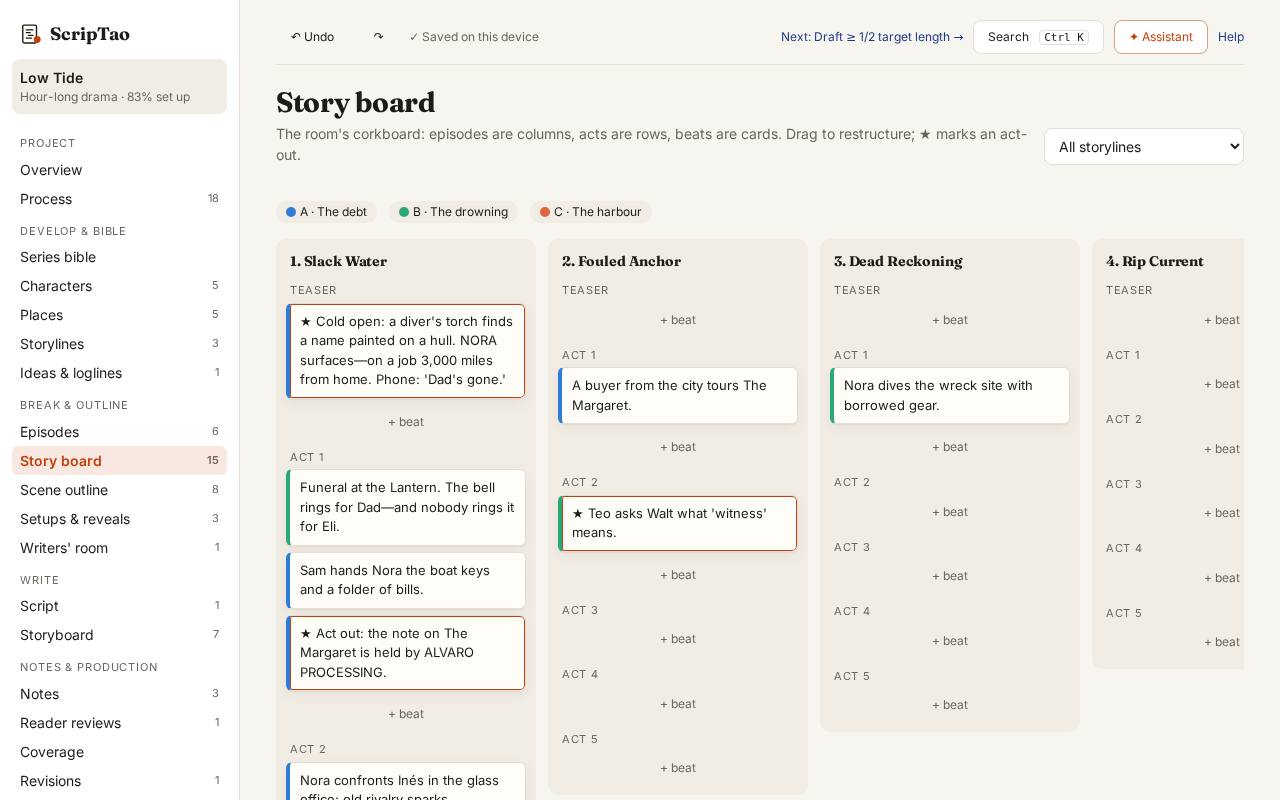
The story board: a column per episode, beats under each act, coloured by storyline. 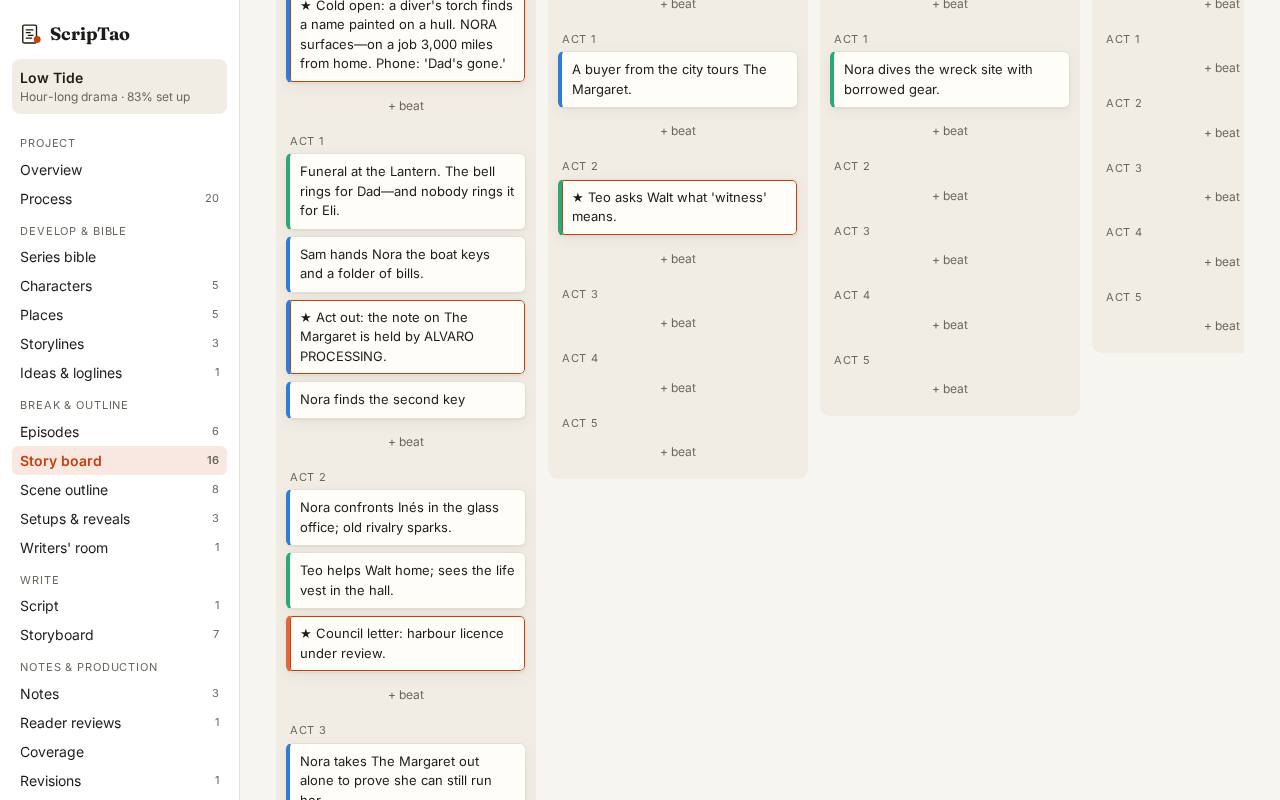
+ Beat under an act adds a card; type what happens and pick its storyline to colour it. 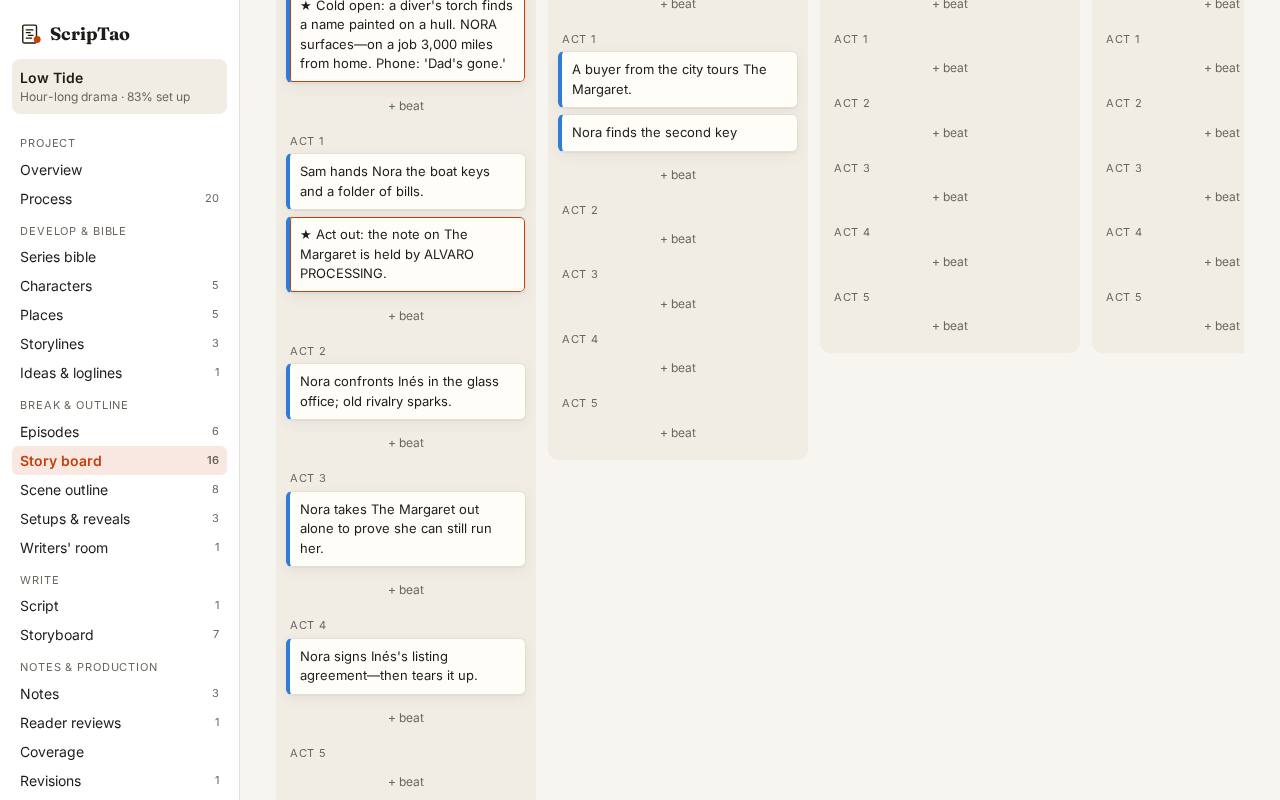
Drag a beat, or use its arrow buttons (Alt+arrows on the keyboard), to move it between episodes and acts. Filter by storyline to see one thread across the season.