Storyboards & comic view
Sketch the shots, then read the episode as a comic.
Add panels to any scene with a shot size, angle and camera move, sketch right in the panel, and write the action and dialogue under it. Switch to comic view to read the scene as a strip.
What it does
- Panels per scene with shot size (ECU to aerial), camera angle and camera move
- Draw a sketch in the panel with mouse, pen or finger
- Action and dialogue / SFX captions, and a duration per panel
- Comic view: read the panels as a strip
How to use it
- Storyboard → pick a scene
- Add panel, choose a shot, sketch
- Switch to Comic to read it back
Step by step
Screenshots of the app, on the sample series. Click one to see it full size.
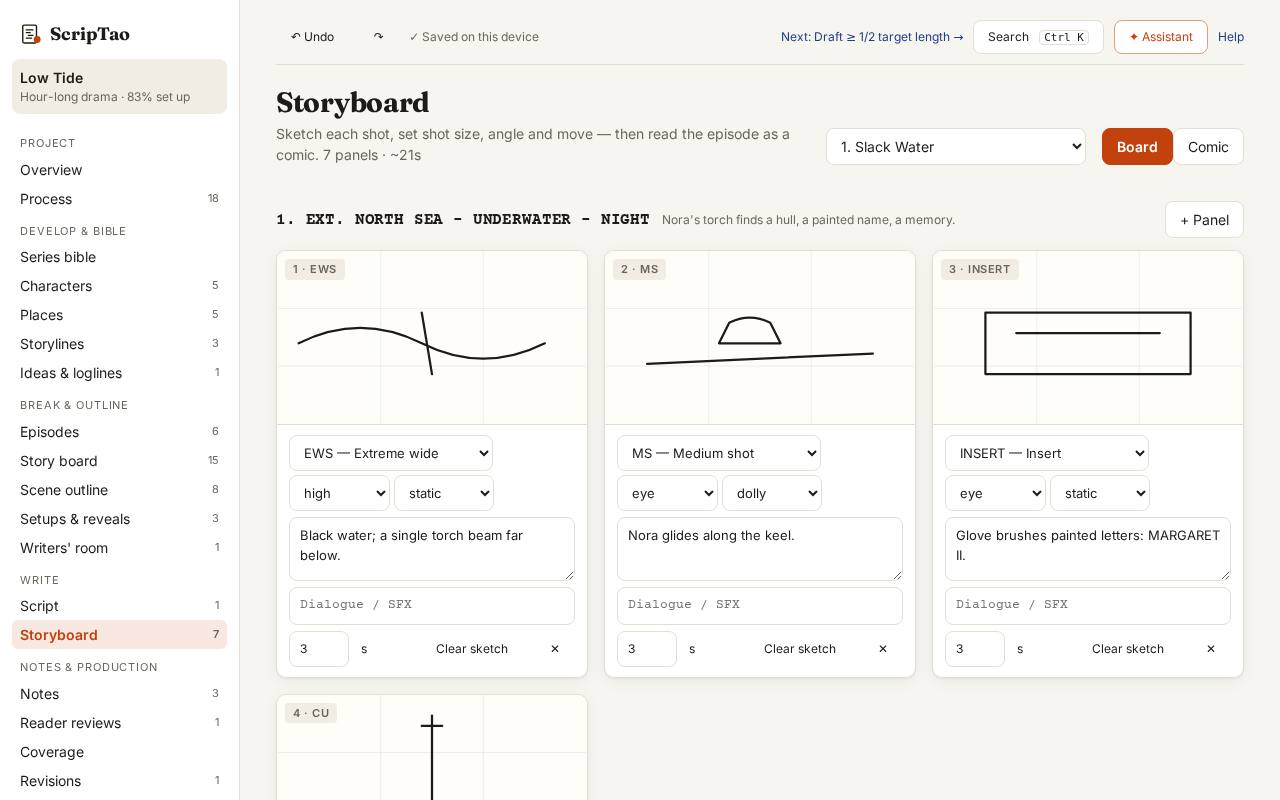
Storyboard: pick a scene; its panels sit under it. 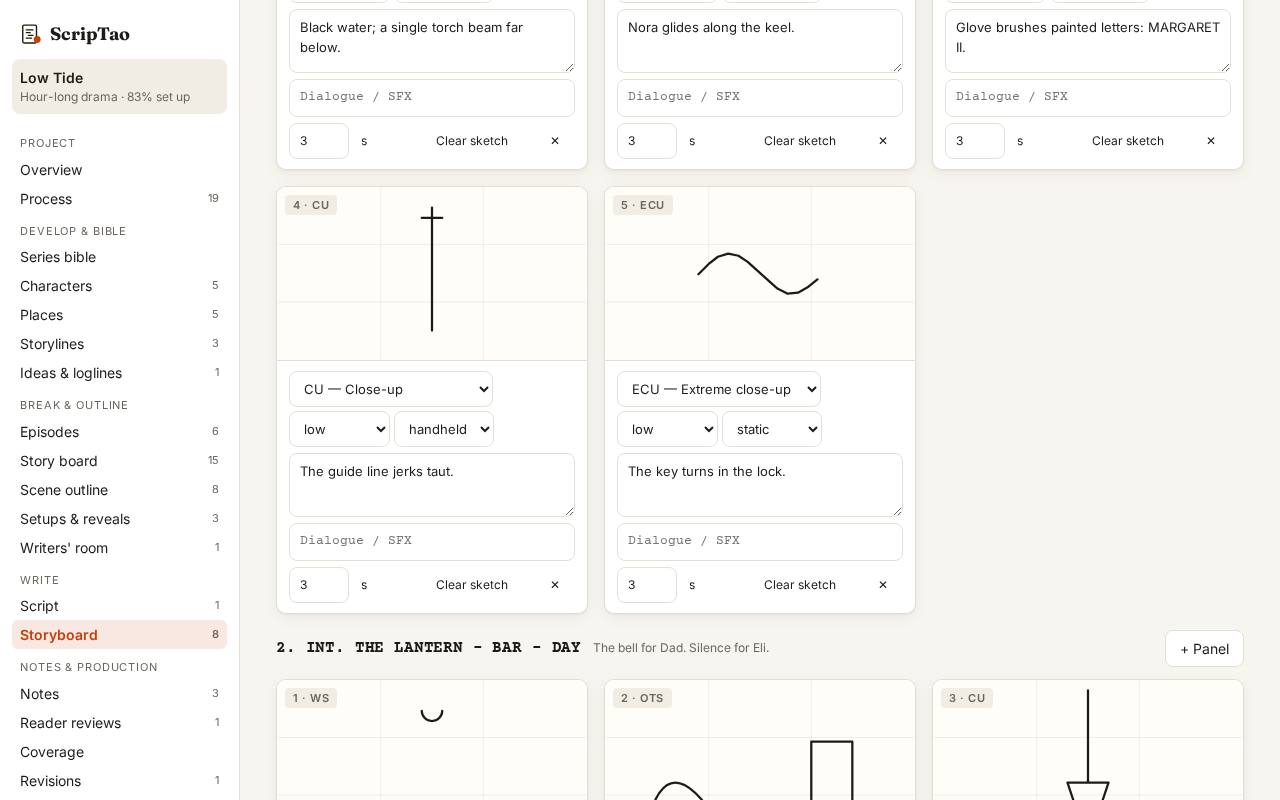
Add panel, choose the shot, angle and move, write the action, and sketch in the frame with a mouse, pen or finger. 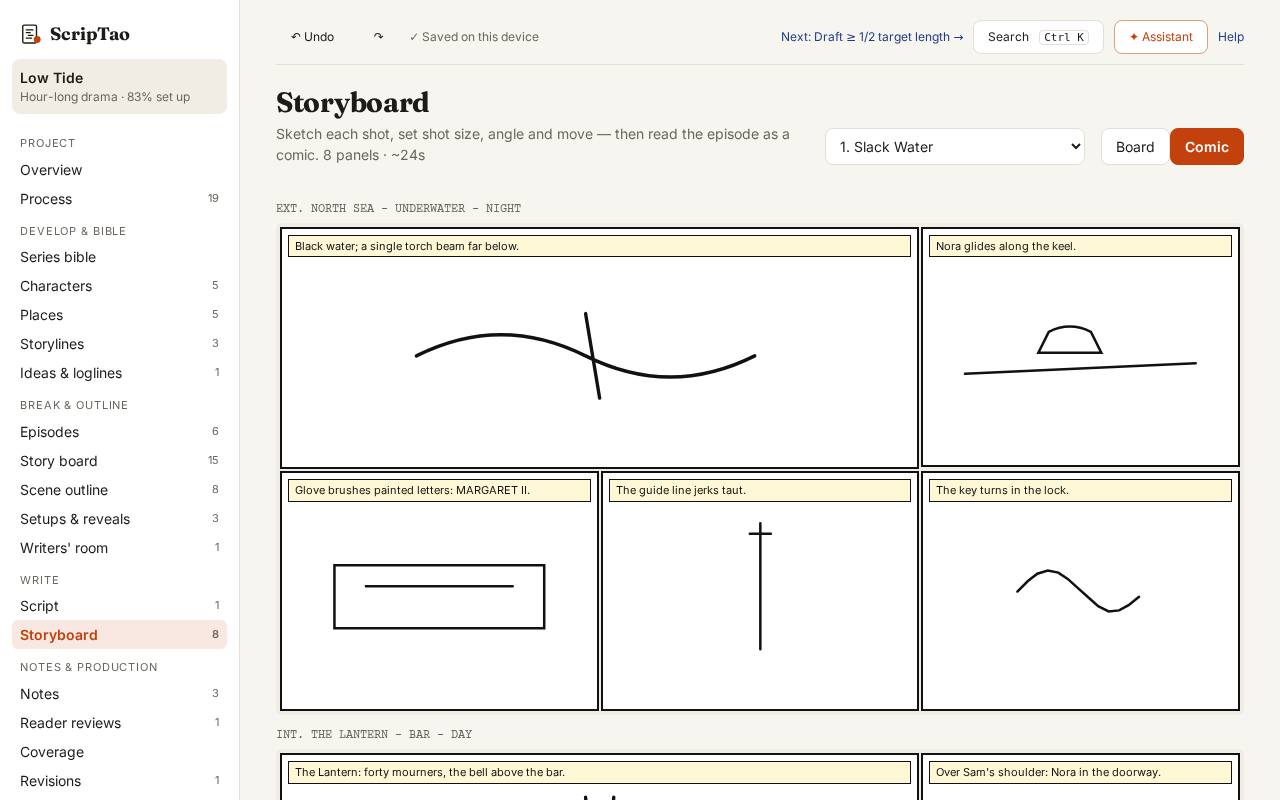
Switch to Comic to read the episode back as a strip.